
How to use the Figshare API
This guide is written for those who may be relatively new to APIs and even new to coding. Rather than a comprehensive guide to using the Figshare API, we hope this gives you a feel for how it works and what it is capable of. This is a first step in going beyond the already powerful repository management and reporting tools available in the Figshare user interface.
General Figshare API resources:
- API Documentation – Information and formatting guidance for on API endpoints
- There are many other GitHub repos for Figshare related workflows or integrations
On this page:
The API documentation user interface
Interacting with the API documentation user interface
Retrieve the full metadata for an item
Perform a metadata search
Authenticate and retrieve metadata from your account
Basic coding/scripting examples
Retrieve data
Authenticate
Send data
Retrieve information for multiple items
Retrieve item ids in your account
Retrieve item ids in a group
Now gather information for item ids
Full metadata
Views and Downloads
Download file(s)
More Complex Scripting Examples
Create an author report
Create items, upload files, and publish
Create a metadata only or linked file item
Upload files
Batch format and upload metadata from a source
Delete account items
Retrieve metadata for items in review
What if I want to publish those items?
Impersonating user accounts
Create a repository dashboard
Search for records related to your institution
Download all content for your institution
Statistics Endpoints Examples
Retrieve total views for one item
Retrieve views from an institution’s group
Retrieve views and downloads by item in a group
The API documentation user interface
There are several important components to the documentation site:
- Left side: Drop down to select API version, field for your token, a search box, and a Table of Contents with links to the endpoints and documentation sections
- Right side: Endpoint details including the endpoint syntax, a short description, error information, and fields that can be used to send a request directly from the documentation page.
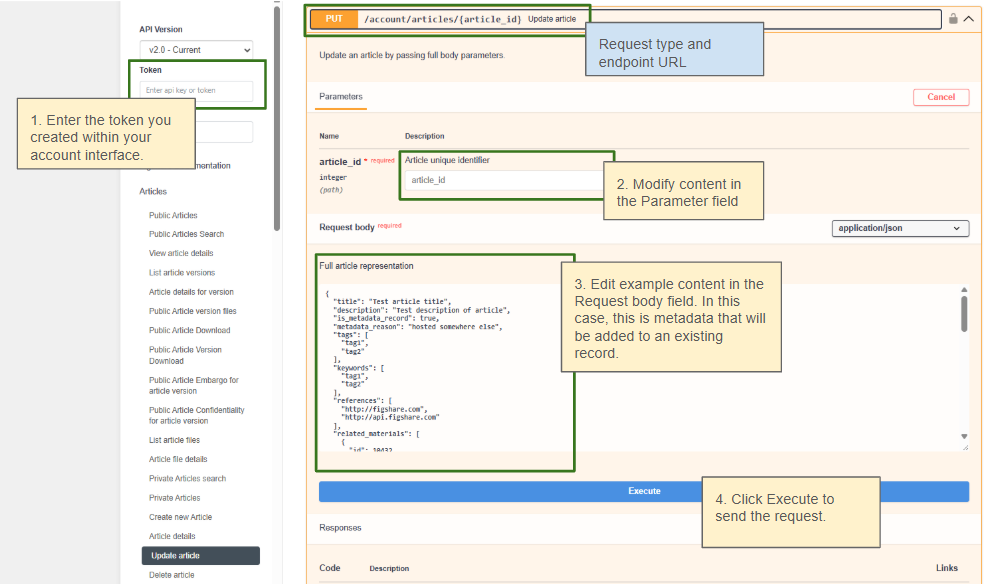
Interacting with the API documentation user interface
Here are several exercises to become familiar with the API endpoints and the formatting required to use them.
Retrieve the full metadata for an item
For this example, we will use a presentation titled “Using APIs to customise repositories and engage audiences”. You can see the file and metadata by visiting this DOI: https://doi.org/10.6084/m9.figshare.5616445. Notice the DOI takes you to this URL: https://figshare.com/articles/presentation/Using_APIs_to_customise_repositories_and_engage_audiences/5616445
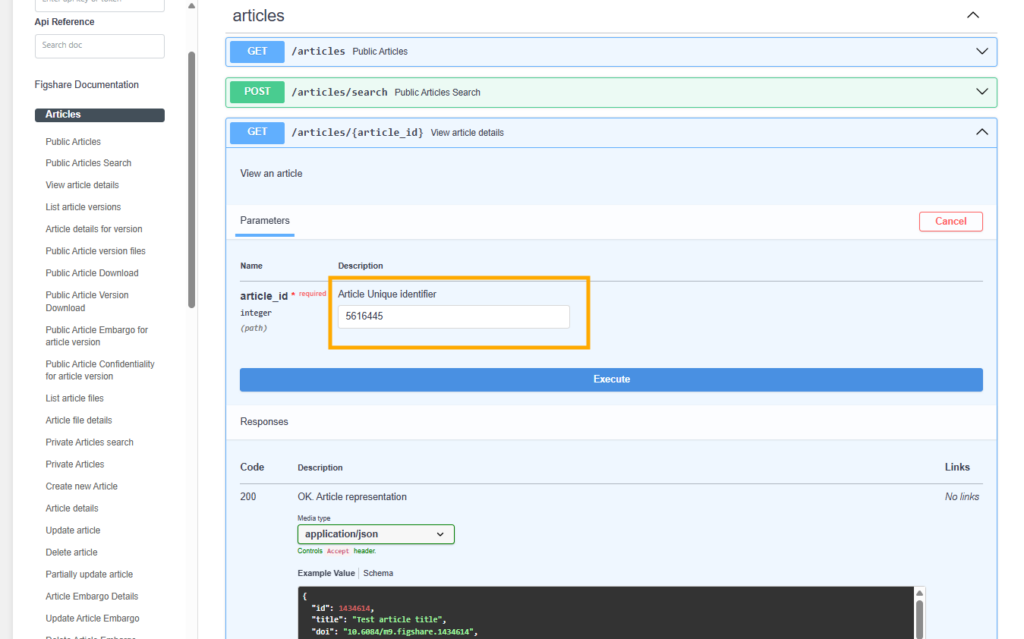
While you can download the citation metadata directly from the user interface, to download all of the metadata you need to use the API. Visit this URL: https://docs.figshare.com/v2/#/articles/article_details. In the article_id field enter the number that is at the very end of the URL above: 5616445. Then click the red ‘TRY’ button. A pop up should appear with all the metadata.
You can view this same output in its own browser tab by visiting the API endpoint with the item id appended to it: https://api.figshare.com/v2/articles/5616445
Perform a metadata search
Figshare search will search all metadata fields by default. You can limit to date ranges and order the results in several ways. You can also search within specific metadata fields. In this example, we will search for records that contain the term “frog” in the title and will return 5 results in descending order by published date. Enter the following JSON into the parameters ‘search’ box at this endpoint: https://docs.figshare.com/v2/#/articles/articles_search
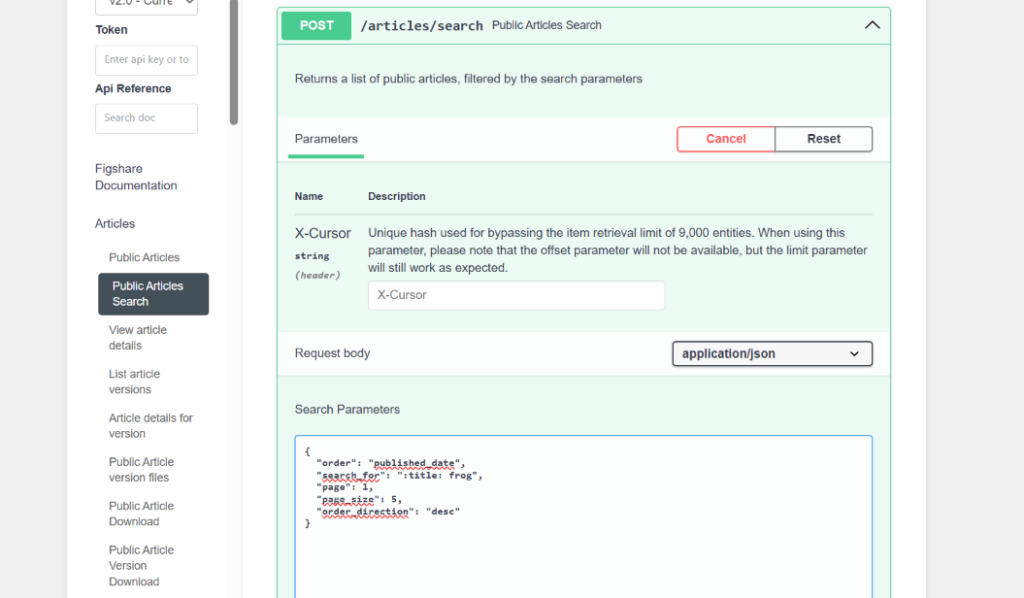
JSON formatted search query:
{
  "order": "published_date",
  "search_for": ":title: frog",
  "page": 1,
  "page_size": 5,
  "order_direction": "desc"
}
Authenticate and retrieve metadata from your account
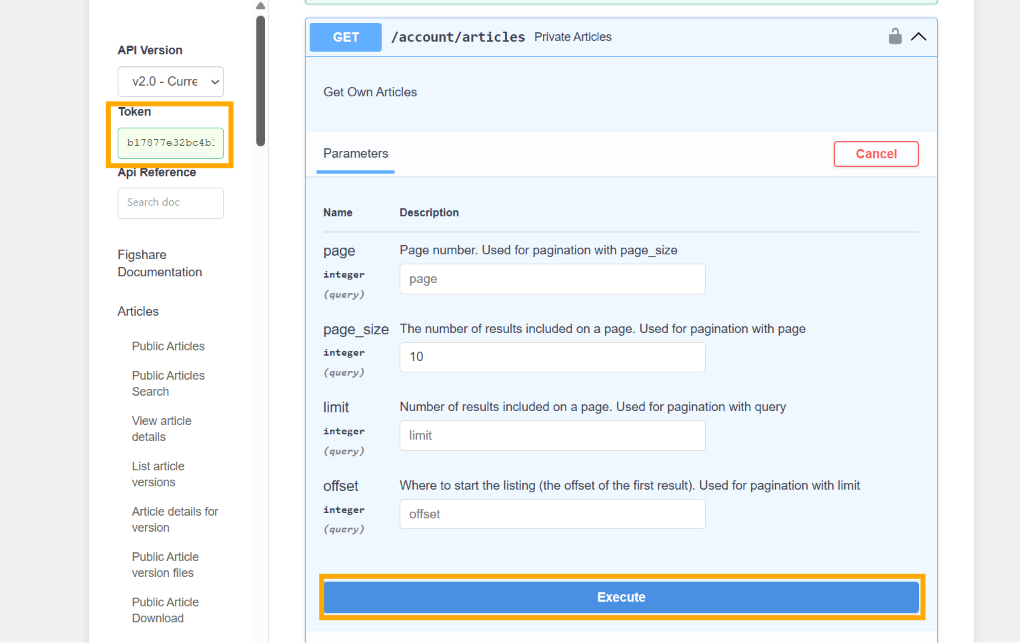
To retrieve or send information that is not public, you will need to create a token from your account and paste that into the API user interface. Once you’ve done that, visit this endpoint: https://docs.figshare.com/v2/#/articles/private_articles_list. Paste the token into the upper left field in the API user interface and hit the ‘Execute’ button. You should see the basic metadata for the private and public items in your account.
Basic coding/scripting examples
We’ve added many of these examples to a Google Colab notebook that you can run on your own computer. You will need a free Google account. Once you open the notebook, read the instructions and try it out. Google will open the notebook as a copy so no one else can see your edits. To save any edits you make, save a copy of the notebook to your own Google Drive.
Retrieve data
Any public metadata or files can be retrieved through the API without authentication. In the example below, the full metadata record for an item is retrieved. The ITEM_ID is the number at the end of any item’s URL.
Python:
from pprint import pprint
import requests

BASE_URL = "https://api.figshare.com/v2"
ITEM_ID = 123456

# Public metadata needs no authentication
response = requests.get(f"{BASE_URL}/articles/{ITEM_ID}", timeout=30)

if response.status_code != 200:
    print("Something went wrong:", response.content)
else:
    metadata = response.json()
    pprint(metadata)
Partial output:
{
  "files": [
    {
      "id": 3074543,
      "name": "2011-02-15_14-24-56-228.png",
      "size": 470683,
      "is_link_only": false,
      "download_url": "https://ndownloader.figshare.com/files/3074543",
      "supplied_md5": "eb5c9c6b278b533f98aa02feae57c266",
      "computed_md5": "eb5c9c6b278b533f98aa02feae57c266"
    }
  ],
  "custom_fields": [],
  "authors": [
    {
      "id": 155524,
      "full_name": "Yunyan Deng",
      "is_active": false,
      "url_name": "_",
      "orcid_id": ""
    },
    {
      "id": 155526,
      "full_name": "Jianting Yao",
      "is_active": false,
      "url_name": "_",
      "orcid_id": ""
    },
    {
      "id": 155529,
      "full_name": "Xiuliang Wang",
      "is_active": false,
      "url_name": "_",
      "orcid_id": ""
    },
    {
      "id": 110581,
      "full_name": "Hui Guo",
      "is_active": false,
      "url_name": "_",
      "orcid_id": ""
    },
    {
      "id": 155532,
      "full_name": "Delin Duan",
      "is_active": false,
      "url_name": "_",
      "orcid_id": ""
    }
  ],
  "figshare_url": "https://plos.figshare.com/articles/dataset/Transcriptome_Sequencing_and_Comparative_Analysis_of_Saccharina_japonica_Laminariales_Phaeophyceae_under_Blue_Light_Induction/123456",
  "description": "BackgroundLight has significant effect on the growth and development of Saccharina japonica, but there are limited reports on blue light mediated physiological responses and molecular mechanism. In this study, high-throughput paired-end RNA-sequencing (RNA-Seq) technology was applied to transcriptomes of S. japonica exposed to blue light and darkness, respectively. Comparative analysis of gene expression was designed to correlate the effect of blue light and physiological mechanisms on the molecular level.Principal Findings RNA-seq analysis yielded 70,497 non-redundant unigenes with an average length of 538 bp. 28,358 (40.2%) functional transcripts encoding regions were identified. Annotation through Swissprot, Nr, GO, KEGG, and COG databases showed 25,924 unigenes compared well (E-value <10) with known gene sequences, and 43 unigenes were putative BL photoreceptor. 10,440 unigenes were classified into Gene Ontology, and 8,476 unigenes were involved in 114 known pathways. Based on RPKM values, 11,660 (16.5%) differentially expressed unigenes were detected between blue light and dark exposed treatments, including 7,808 upregulated and 3,852 downregulated unigenes, suggesting S. japonica had undergone extensive transcriptome re-orchestration during BL exposure. The BL-specific responsive genes were indentified to function in processes of circadian rhythm, flavonoid biosynthesis, photoreactivation and photomorphogenesis.Significance Transcriptome profiling of S. japonica provides clues to potential genes identification and future functional genomics study. The global survey of expression changes under blue light will enhance our understanding of molecular mechanisms underlying blue light induced responses in lower plants as well as facilitate future blue light photoreceptor identification and specific responsive pathways analysis.",
  "funding": null,
  "funding_list": [],
  "version": 1,
  "status": "public",
  "size": 470683,
  "created_date": "2012-06-27T00:57:36Z",
  "modified_date": "2016-01-19T09:09:40Z",
  "is_public": true,
  "is_confidential": false,
  "is_metadata_record": false,
  "confidential_reason": "",
  "metadata_reason": "",
  "license": {
    "value": 1,
    "name": "CC BY 4.0",
    "url": "https://creativecommons.org/licenses/by/4.0/"
  },
  "tags": [
    "transcriptome",
    "sequencing",
    "comparative",
    "induction"
  ],
  "categories": [
    {
      "id": 69,
      "title": "Inorganic Chemistry",
      "parent_id": 38,
      "path": "",
      "source_id": "",
      "taxonomy_id": 10
    },
    {
      "id": 13,
      "title": "Genetics",
      "parent_id": 48,
      "path": "",
      "source_id": "",
      "taxonomy_id": 10
    },
    {
      "id": 61,
      "title": "Developmental Biology",
      "parent_id": 48,
      "path": "",
      "source_id": "",
      "taxonomy_id": 10
    }
  ],
  "references": [],
  "has_linked_file": false,
  "citation": "Deng, Yunyan; Yao, Jianting; Wang, Xiuliang; Guo, Hui; Duan, Delin (2016): Transcriptome Sequencing and Comparative Analysis of Saccharina japonica (Laminariales, Phaeophyceae) under Blue Light Induction. PLOS ONE. Dataset. https://doi.org/10.1371/journal.pone.0039704",
  "is_embargoed": false,
  "embargo_date": null,
  "embargo_type": null,
  "embargo_title": "",
  "embargo_reason": "",
  "embargo_options": [],
  "id": 123456,
  "title": "Transcriptome Sequencing and Comparative Analysis of Saccharina japonica (Laminariales, Phaeophyceae) under Blue Light Induction",
  "doi": "10.1371/journal.pone.0039704",
  "handle": "",
  "url": "https://api.figshare.com/v2/articles/123456",
  "published_date": "2012-06-27T00:57:36Z",
  "thumb": "https://s3-eu-west-1.amazonaws.com/ppreviews-plos-725668748/3074543/thumb.png",
  "defined_type": 3,
  "defined_type_name": "dataset",
  "group_id": 107,
  "url_private_api": "https://api.figshare.com/v2/account/articles/123456",
  "url_public_api": "https://api.figshare.com/v2/articles/123456",
  "url_private_html": "https://figshare.com/account/articles/123456",
  "url_public_html": "https://plos.figshare.com/articles/dataset/Transcriptome_Sequencing_and_Comparative_Analysis_of_Saccharina_japonica_Laminariales_Phaeophyceae_under_Blue_Light_Induction/123456",
  "timeline": {
    "posted": "2012-06-27T00:57:36",
    "firstOnline": "2016-01-19T09:09:40"
  },
  "resource_title": "Transcriptome Sequencing and Comparative Analysis of Saccharina japonica (Laminariales, Phaeophyceae) under Blue Light Induction",
  "resource_doi": "10.1371/journal.pone.0039704"
}
Authenticate
Authentication is required for any endpoint that retrieves or accepts private or institutional information. A token can be created for any user account and provides access in line with the account’s privileges. In the example below, a user retrieves 10 basic metadata records from their personal account. These records may include both public and private (draft) records. Note that the results are limited to 10 by using the page and page_size parameters.
Python:
import os
from pprint import pprint
import requests

BASE_URL = "https://api.figshare.com/v2"

TOKEN = "ENTER TOKEN HERE" ####-----------------ADD YOUR TOKEN BETWEEN QUOTES - example: 'dkd8rskjdkfiwi49hgkw...' --------------#######
headers = {"Authorization": f"token {TOKEN}"}

response = requests.get(
    f"{BASE_URL}/account/articles",
    headers=headers,
    params={"page": 1, "page_size": 10},
    timeout=30,
)

if response.status_code != 200:
    print("Something went wrong:", response.content)
else:
    pprint(response.json())
Output:
[
  {
    "id": 8365555,
    "title": "Testing-full embargo-restrict access-unpublish-republish",
    "doi": "10.0166/FK2.stagefigshareare.8365555",
    "handle": "",
    "url": "https://api.figshare.com/v2/account/articles/8365555",
    "published_date": "2023-04-06T13:13:41Z",
    "thumb": "",
    "defined_type": 3,
    "defined_type_name": "dataset",
    "group_id": 9991,
    "url_private_api": "https://api.figshare.com/v2/account/articles/8365555",
    "url_public_api": "https://api.figshare.com/v2/articles/8365555",
    "url_private_html": "https://figshare.com/account/articles/8365555",
    "url_public_html": "https://faber.figshare.com/articles/dataset/Testing-full_embargo-restrict_access-unpublish-republish/8365555",
    "timeline": {
      "posted": "2023-04-06T13:13:41",
      "firstOnline": "2023-04-06T13:09:40"
    },
    "resource_title": null,
    "resource_doi": null
  },
  {
    "id": 8356369,
    "title": "My example dataset",
    "doi": "10.0166/FK2.stagefigshareare.8356369",
    "handle": "",
    "url": "https://api.figshare.com/v2/account/articles/8356369",
    "published_date": "2023-04-04T21:36:57Z",
    "thumb": "",
    "defined_type": 3,
    "defined_type_name": "dataset",
    "group_id": 9991,
    "url_private_api": "https://api.figshare.com/v2/account/articles/8356369",
    "url_public_api": "https://api.figshare.com/v2/articles/8356369",
    "url_private_html": "https://figshare.com/account/articles/8356369",
    "url_public_html": "https://faber.figshare.com/articles/dataset/My_example_embargoed_record_-_institutional_repository_version/8356369",
    "timeline": {
      "posted": "2023-04-04T21:36:57",
      "firstOnline": "2023-04-04T21:36:01"
    },
    "resource_title": null,
    "resource_doi": null
  },
  {
    "id": 8351662,
    "title": "Untitled Item",
    "doi": "",
    "handle": "",
    "url": "https://api.figshare.com/v2/account/articles/8351662",
    "published_date": null,
    "thumb": "",
    "defined_type": 0,
    "defined_type_name": "",
    "group_id": 9991,
    "url_private_api": "https://api.figshare.com/v2/account/articles/8351662",
    "url_public_api": "https://api.figshare.com/v2/articles/8351662",
    "url_private_html": "https://figshare.com/account/articles/8351662",
    "url_public_html": "https://faber.figshare.com/articles/dataset/_/8351662",
    "timeline": {},
    "resource_title": null,
    "resource_doi": null
  },
  {
    "id": 8332638,
    "title": "Ant behaviour data set",
    "doi": "10.0166/FK2.stagefigshareare.8332638",
    "handle": "",
    "url": "https://api.figshare.com/v2/account/articles/8332638",
    "published_date": "2023-03-24T15:16:19Z",
    "thumb": "https://s3-eu-west-1.amazonaws.com/testfigsharearepreviews.figshareare.com/830360616/thumb.png",
    "defined_type": 3,
    "defined_type_name": "dataset",
    "group_id": 9991,
    "url_private_api": "https://api.figshare.com/v2/account/articles/8332638",
    "url_public_api": "https://api.figshare.com/v2/articles/8332638",
    "url_private_html": "https://figshare.com/account/articles/8332638",
    "url_public_html": "https://faber.figshare.com/articles/dataset/Ant_behaviour_data_set/8332638",
    "timeline": {
      "posted": "2023-03-24T15:16:19",
      "firstOnline": "2023-03-24T15:16:19"
    },
    "resource_title": null,
    "resource_doi": null
  },
  {
    "id": 8329418,
    "title": "A versioned item - unpublished - republished",
    "doi": "10.0166/FK2.stagefigshareare.8329418",
    "handle": "",
    "url": "https://api.figshare.com/v2/account/articles/8329418",
    "published_date": "2023-04-06T20:35:25Z",
    "thumb": "https://s3-eu-west-1.amazonaws.com/testfigsharearepreviews.figshareare.com/830356944/thumb.png",
    "defined_type": 2,
    "defined_type_name": "media",
    "group_id": 9991,
    "url_private_api": "https://api.figshare.com/v2/account/articles/8329418",
    "url_public_api": "https://api.figshare.com/v2/articles/8329418",
    "url_private_html": "https://figshare.com/account/articles/8329418",
    "url_public_html": "https://faber.figshare.com/articles/media/A_versioned_item_-_unpublished_-_republished/8329418",
    "timeline": {
      "posted": "2023-04-06T20:35:25",
      "firstOnline": "2023-03-23T18:42:20"
    },
    "resource_title": null,
    "resource_doi": null
  },
  {
    "id": 8327074,
    "title": "Data supporting wood ants behaviour",
    "doi": "10.0166/FK2.stagefigshareare.8327074",
    "handle": "",
    "url": "https://api.figshare.com/v2/account/articles/8327074",
    "published_date": "2023-03-22T09:57:21Z",
    "thumb": "https://s3-eu-west-1.amazonaws.com/testfigsharearepreviews.figshareare.com/830355168/thumb.png",
    "defined_type": 3,
    "defined_type_name": "dataset",
    "group_id": 9991,
    "url_private_api": "https://api.figshare.com/v2/account/articles/8327074",
    "url_public_api": "https://api.figshare.com/v2/articles/8327074",
    "url_private_html": "https://figshare.com/account/articles/8327074",
    "url_public_html": "https://faber.figshare.com/articles/dataset/Data_supporting_wood_ants_behaviour/8327074",
    "timeline": {
      "posted": "2023-03-22T09:57:21",
      "firstOnline": "2023-03-22T09:57:21"
    },
    "resource_title": "A motion compensation treadmill for untethered wood ants (Formica rufa): evidence for transfer of orientation memories from free-walking training",
    "resource_doi": "10.1242/jeb.228601"
  },
  {
    "id": 8275510,
    "title": "DRI Sample Report.pdf",
    "doi": "10.0166/FK2.stagefigshareare.8275510",
    "handle": "",
    "url": "https://api.figshare.com/v2/account/articles/8275510",
    "published_date": "2023-04-07T16:12:14Z",
    "thumb": "",
    "defined_type": 3,
    "defined_type_name": "dataset",
    "group_id": 9991,
    "url_private_api": "https://api.figshare.com/v2/account/articles/8275510",
    "url_public_api": "https://api.figshare.com/v2/articles/8275510",
    "url_private_html": "https://figshare.com/account/articles/8275510",
    "url_public_html": "https://faber.figshare.com/articles/dataset/DRI_Sample_Report_pdf/8275510",
    "timeline": {
      "posted": "2023-04-07T16:12:14",
      "firstOnline": "2023-04-07T16:12:14"
    },
    "resource_title": null,
    "resource_doi": null
  },
  {
    "id": 8271566,
    "title": "Exhibition B Image",
    "doi": "10.0166/FK2.stagefigshareare.8271566",
    "handle": "",
    "url": "https://api.figshare.com/v2/account/articles/8271566",
    "published_date": "2023-02-20T15:09:10Z",
    "thumb": "https://s3-eu-west-1.amazonaws.com/testfigsharearepreviews.figshareare.com/830323572/thumb.png",
    "defined_type": 2,
    "defined_type_name": "media",
    "group_id": 9991,
    "url_private_api": "https://api.figshare.com/v2/account/articles/8271566",
    "url_public_api": "https://api.figshare.com/v2/articles/8271566",
    "url_private_html": "https://figshare.com/account/articles/8271566",
    "url_public_html": "https://faber.figshare.com/articles/media/Exhibition_B_Image/8271566",
    "timeline": {
      "posted": "2023-02-20T15:09:10",
      "firstOnline": "2023-02-20T15:09:10"
    },
    "resource_title": null,
    "resource_doi": null
  },
  {
    "id": 8262674,
    "title": "Ireland pub C18th",
    "doi": "10.0166/FK2.stagefigshareare.8262674",
    "handle": "",
    "url": "https://api.figshare.com/v2/account/articles/8262674",
    "published_date": "2023-02-16T11:29:15Z",
    "thumb": "https://s3-eu-west-1.amazonaws.com/testfigsharearepreviews.figshareare.com/830318778/thumb.png",
    "defined_type": 1,
    "defined_type_name": "figure",
    "group_id": 9991,
    "url_private_api": "https://api.figshare.com/v2/account/articles/8262674",
    "url_public_api": "https://api.figshare.com/v2/articles/8262674",
    "url_private_html": "https://figshare.com/account/articles/8262674",
    "url_public_html": "https://faber.figshare.com/articles/figure/Ireland_pub_C18th/8262674",
    "timeline": {
      "posted": "2023-02-16T11:29:15",
      "firstOnline": "2023-02-16T11:29:15"
    },
    "resource_title": null,
    "resource_doi": null
  },
  {
    "id": 8260098,
    "title": "Slides",
    "doi": "10.0166/FK2.stagefigshareare.8260098",
    "handle": "",
    "url": "https://api.figshare.com/v2/account/articles/8260098",
    "published_date": null,
    "thumb": "https://ndownloader.figshare.com/files/830317022/preview/830317022/thumb.png",
    "defined_type": 7,
    "defined_type_name": "presentation",
    "group_id": 9999,
    "url_private_api": "https://api.figshare.com/v2/account/articles/8260098",
    "url_public_api": "https://api.figshare.com/v2/articles/8260098",
    "url_private_html": "https://figshare.com/account/articles/8260098",
    "url_public_html": "https://faber.figshare.com/articles/presentation/Slides/8260098",
    "timeline": {},
    "resource_title": null,
    "resource_doi": null
  }
]
Send data
Sending information through a POST or PUT endpoint is accomplished by adding a ‘data’ variable to the request. The contents of the data variable needs to be formatted as indicated by the documentation for the API endpoint. In the example below, a new record is added to the account that created the token.
Python:
import os
import requests

BASE_URL = "https://api.figshare.com/v2"
#Set the token for the header
TOKEN = "ENTER TOKEN HERE" ####-----------------ADD YOUR TOKEN BETWEEN QUOTES - example: 'dkd8rskjdkfiwi49hgkw...' --------------#######
headers = {"Authorization": f"token {TOKEN}"}

new_item = {
    "title": "Test metadata for upload",
    "keywords": ["biodiversity", "invertebrate"],
}

response = requests.post(f"{BASE_URL}/account/articles", headers=headers, json=new_item, timeout=30)

if response.status_code != 201:
    print("Something went wrong:", response.content)
else:
    print("Successfully created item:", response.json())
Retrieve information for multiple items
This section describes how to use multiple API calls to retrieve metadata or files from multiple items. The basic idea is to:
- Create a list of item ids
- Retrieve item ids in your account or
- Retrieve item ids through a search query
- Loop through the list and gather the information needed for each item id
- Full metadata
- Views and Downloads
- Download file(s)
Retrieve item ids in your account
Python
import os
import requests

BASE_URL = "https://api.figshare.com/v2"  # Use https://api.figsh.com/v2 for the sandbox
TOKEN = "ENTER TOKEN HERE" ####-----------------ADD YOUR TOKEN BETWEEN QUOTES - example: 'dkd8rskjdkfiwi49hgkw...' --------------#######
headers = {"Authorization": f"token {TOKEN}"}


# Retrieve up to 50 items (published and unpublished) your account owns
response = requests.get(
    f"{BASE_URL}/account/articles",
    headers=headers,
    params={"page": 1, "page_size": 50},
    timeout=30,
)

if response.status_code != 200:
    print("Something went wrong:", response.content)
else:
    items = response.json()
    print(f"Collected {len(items)} metadata records")

item_ids = [item["id"] for item in items]
print("List of item ids created, called item_ids")
Retrieve item ids in a group
You may want to gather all the items in a particular group. The script below does just that. Notes:
- Group structures only apply to institutions and these structures may be complex. This script is probably most useful for institution administrators.
- It only returns items published in the specific group. It does not return results for subgroups.
- Remember that system ids, e.g. group ids and account ids, are different between production and stage.
Python:
import requests

BASE_URL = "https://api.figshare.com/v2"
INST_ID = 319   # Iowa State University. Optional — the group id alone is enough.
GRP_ID = 11962  # Iowa State University Agriculture Group.
PAGE_SIZE = 10
PAGES_TO_FETCH = 2  # You can collect up to 9,000 results this way.

query = {"group": GRP_ID, "institution": INST_ID}
results = []

for page in range(1, PAGES_TO_FETCH + 1):
    response = requests.post(
        f"{BASE_URL}/articles/search",
        params={"page_size": PAGE_SIZE, "page": page},
        json=query,
        timeout=30,
    )
    if response.status_code != 200:
        print("Something went wrong:", response.content)
        break
    results.extend(response.json())

print(f"{len(results)} items retrieved")

item_ids = [item["id"] for item in results]
print("List of item ids created, called item_ids")
Now gather information for item ids
Full metadata
Use one of the methods above to create a list of item ids called item_ids. This code includes an option to add a token in the header in case some of the item ids are for unpublished records.
Python:
import requests

BASE_URL = "https://api.figshare.com/v2"

# ---INSERT CODE TO COLLECT ITEM IDS HERE----

full_records = []
for item_id in item_ids:
    response = requests.get(f"{BASE_URL}/articles/{item_id}", headers=headers, timeout=30)
    if response.status_code != 200:
        print(f"Skipping item {item_id}, something went wrong:", response.content)
        continue
    full_records.append(response.json())

print(f"{len(full_records)} metadata records collected")
Views and downloads
The options for views, downloads, and shares are described here: https://docs.figshare.com/#stats. Note that the endpoints for Breakdown and Timeline for institution items require a special administrator authentication that you can request for your institution through https://support.figshare.com.
In the example below, the total views and downloads for each item id are collected. Note that this script uses the pandas package to create a table of values.
Python:
import pandas as pd
import requests

BASE_URL = "https://stats.figshare.com"

stats = []
for item_id in item_ids:
    views = requests.get(f"{BASE_URL}/total/views/article/{item_id}", timeout=30).json()
    downloads = requests.get(f"{BASE_URL}/total/downloads/article/{item_id}", timeout=30).json()
    stats.append({
        "item_id": item_id,
        "total_views": views["totals"],
        "total_downloads": downloads["totals"],
    })

df = pd.DataFrame(stats)
df.head(3)
Output:
| item_id | total_views | total_downloads |
| 1325958 | 243 | 54 |
| 1138718 | 7552 | 3030 |
Download file(s)
There are several ways to download files through the API. Each file that is part of a record has its own download URL. You can find this URL in the full metadata retrieved through the API or you can enter the item id at this endpoint: https://docs.figshare.com/#article_files. For item https://doi.org/10.6084/m9.figshare.5616409.v3, the download URL for the file is https://figshare.com/ndownloader/files/9778696. Visiting that URL will automatically start the download (File is 219KB).
Python:
import requests
from pathlib import Path

BASE_URL = "https://api.figshare.com/v2"

# ---INSERT CODE TO COLLECT ITEM IDS HERE----
# Or use this small test set of ids with small files:
# item_ids = [17714843, 153788]

file_info = []
for item_id in item_ids:
    response = requests.get(f"{BASE_URL}/articles/{item_id}/files", timeout=30)
    for file_record in response.json():
        file_record["item_id"] = item_id
        file_info.append(file_record)

# Download each file into a folder named after its item id
for file_record in file_info:
    download_response = requests.get(
        f"{BASE_URL}/file/download/{file_record['id']}",
        headers=headers,
        timeout=30,
        stream=True,  # don't load the whole file into memory at once
    )
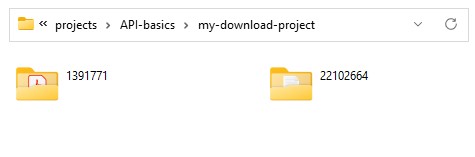
    folder = Path(str(file_record["item_id"]))
    folder.mkdir(exist_ok=True)
    with open(folder / file_record["name"], "wb") as f:
        for chunk in download_response.iter_content(chunk_size=1024 * 1024):
            f.write(chunk)

print("All done. If using Colab, you'll find the files in the folder icon on the left.")
Output: The download script will save files to folders named for the item id the files belong to:
More Complex Scripting Examples
Create an author report
The API can provide information for individual authors. As an example, we created a Jupyter Notebook in Google Colab.
Note: If you want to do this for an account within an institutional repository, you need to adjust the stats urls in the script and will need your institution’s stats credentials. See the notes in the script and refer to the Statistics Endpoints Examples section at the end of this page.
Anyone can run the Google Colab script, though you’ll need to sign into a Google account to do so. Then you must only add an author name or an ORCID. Here’s a good ORCID to try this with: 0000-0001-7023-9832
The script produces a table with metadata for the author’s outputs, views and downloads, and produces a plotly map of views for all the records (stats will only be for records stored in figshare.com accounts).
Here is the order of operations:
- Import libraries and set base API URL
- Perform search for name or ORCID using this endpoint: https://docs.figshare.com/#articles_search Then create a dataframe
- Gather views and downloads for each record from this endpoint: https://docs.figshare.com/#stats_totals Then create a dataframe
- Merge the metadata and stats dataframes
- Optionally collect all the same information for Collections using the collection endpoints
- Format the date information (extract dates from the JSON and add them to the dataframe
- Gather views by country for each item using this endpoint: https://docs.figshare.com/#stats_breakdown
- Map the views
- Save the dataframe and you can copy the map images from the browser
Create items, upload files, and publish
A common use of the API is to create metadata records from existing metadata. For example you may have metadata harvested from somewhere else that you want to include in your repository as metadata only or linked records. Or you may have metadata and files that you want to add to an account or repository. This section will assume you have already formatted the metadata for upload.
Create a metadata only or linked file item
To create records using the API, you need to use three endpoints: 1) create a private record, optionally add a link to a file, and then OPTIONALLY, publish the record.
This Python example will create a linked file record for a paper- effectively it is a metadata only record that points users to the publisher’s DOI.
Python:
import os
import requests

BASE_URL = "https://api.figshare.com/v2"  # Sandbox: https://api.figsh.com/v2
TOKEN = os.environ["FIGSHARE_TOKEN"]
headers = {"Authorization": f"token {TOKEN}"}

new_item = {
    "title": "Producing performance-advantaged bioplastics",
    "description": (
        "Abstract: A grand challenge for bio-based plastics is the ability to "
        "cost-effectively manufacture high-performance polymers directly from "
        "renewable resources that are also recyclable-by-design. A one-step "
        "conversion of xylose to polyesters has been reported, combining a "
        "sustainable lifecycle with impressive materials performance."
    ),
    "keywords": ["bioplastics"],
    "category_by_source_id": ["310303"],
    "authors": [{"name": "Robin M. Cywar"}, {"name": "Gregg Beckham"}],
    "defined_type": "journal contribution",
    "license": 1,
    "resource_doi": "10.1038/s41557-022-01030-y",
    "resource_title": "Producing performance-advantaged bioplastics",
    "timeline": {"firstOnline": "2022-11-26"},
    "funding": "National Renewable Energy Laboratory",
}

create_response = requests.post(f"{BASE_URL}/account/articles", headers=headers, json=new_item, timeout=30)

if create_response.status_code != 201:

    print("Record failed:", create_response.content[:200])
else:
    article_url = create_response.json()["location"]
    article_id = article_url.rsplit("/", 1)[-1]

    # The upload account is automatically added as an author — replace with the real author list
    author_update = requests.put(article_url, headers=headers, json={"authors": new_item["authors"]}, timeout=30)
    if author_update.status_code != 205:
        print("Author update failed:", author_update.content[:200])

    # Add the publisher's DOI as a linked file (metadata-only record, no file upload)
    link = {"link": f"https://doi.org/{new_item['resource_doi']}"}
    link_response = requests.post(f"{BASE_URL}/account/articles/{article_id}/files", headers=headers, json=link, timeout=30)
    if link_response.status_code != 201:
        print("Linking DOI failed:", link_response.content[:200])

    print("Record created:", article_url)

    # OPTIONAL: publish the record once you're happy with it
    # publish_response = requests.post(f"{BASE_URL}/account/articles/{article_id}/publish", headers=headers, timeout=30)
Upload files
The process to upload files may seem complex but this is necessary to handle extremely large files. So whether your file is a few kilobytes or a terabyte, this process will work.
The overall process to upload files looks like this: 1) create a private record, upload file(s), and then publish the record.
As described in the upload documentation, there are four steps to uploading: 1) Initiate the upload 2) Receive the number of file parts, 3) Upload the file parts, and 4) Complete the upload. The documentation linked above has a sample script in several languages. A Jupyter Notebook and Python example is downloadable from this Google Colab file and is reproduced below:
Python:
import hashlib
import os
import requests
from requests.exceptions import HTTPError

BASE_URL = "https://api.figshare.com/v2/{endpoint}"
TOKEN = os.environ["FIGSHARE_TOKEN"]
CHUNK_SIZE = 10 * 1024 * 1024  # 10 MB
FILE_PATH = "FILE NAME"  # e.g. 'file-name.mp4', if it's in the same folder as this script
TITLE = "Uploaded through API"


def raw_issue_request(method, url, data=None, binary=False):
    headers = {"Authorization": f"token {TOKEN}"}
    response = requests.request(
        method, url, headers=headers,
        data=data if binary else None,
        json=data if not binary else None,
        timeout=60,
    )
    try:
        response.raise_for_status()
    except HTTPError as error:
        print(f"Caught an HTTPError: {error}")
        print("Body:\n", response.content)
        raise
    try:
        return response.json()
    except ValueError:
        return response.content


def issue_request(method, endpoint, *args, **kwargs):
    return raw_issue_request(method, BASE_URL.format(endpoint=endpoint), *args, **kwargs)


def list_articles():
    result = issue_request("GET", "account/articles")
    print("Listing current articles:")
    if result:
        for item in result:
            print(f"  {item['url']} - {item['title']}")
    else:
        print("  No articles.")


def create_article(title):
    result = issue_request("POST", "account/articles", data={"title": title})
    print("Created article:", result["location"], "\n")
    return raw_issue_request("GET", result["location"])["id"]


def list_files_of_article(article_id):
    result = issue_request("GET", f"account/articles/{article_id}/files")
    print(f"Listing files for article {article_id}:")
    if result:
        for item in result:
            print(f"  {item['id']} - {item['name']}")
    else:
        print("  No files.")


def get_file_check_data(file_name):
    md5 = hashlib.md5()
    size = 0
    with open(file_name, "rb") as fin:
        for chunk in iter(lambda: fin.read(CHUNK_SIZE), b""):
            size += len(chunk)
            md5.update(chunk)
    return md5.hexdigest(), size


def initiate_new_upload(article_id, file_name):
    md5, size = get_file_check_data(file_name)
    data = {"name": os.path.basename(file_name), "md5": md5, "size": size}
    result = issue_request("POST", f"account/articles/{article_id}/files", data=data)
    print("Initiated file upload:", result["location"], "\n")
    return raw_issue_request("GET", result["location"])


def complete_upload(article_id, file_id):
    issue_request("POST", f"account/articles/{article_id}/files/{file_id}")


def upload_parts(file_info):
    result = raw_issue_request("GET", file_info["upload_url"])
    print("Uploading parts:")
    with open(FILE_PATH, "rb") as fin:
        for part in result["parts"]:
            upload_part(file_info, fin, part)


def upload_part(file_info, stream, part):
    url = f"{file_info['upload_url']}/{part['partNo']}"
    stream.seek(part["startOffset"])
    data = stream.read(part["endOffset"] - part["startOffset"] + 1)
    raw_issue_request("PUT", url, data=data, binary=True)
    print(f"  Uploaded part {part['partNo']} from {part['startOffset']} to {part['endOffset']}")


def main():
    list_articles()
    article_id = create_article(TITLE)
    list_articles()  # your new item should now be at the top
    list_files_of_article(article_id)

    file_info = initiate_new_upload(article_id, FILE_PATH)
    # Everything above this line uses the Figshare API; the upload itself uses the separate upload service.
    upload_parts(file_info)
    # Back to the Figshare API to close out the upload.
    complete_upload(article_id, file_info["id"])
    list_files_of_article(article_id)


if __name__ == "__main__":
    main()
Batch format and upload metadata from a source
This offers an example of creating linked file records based on harvested metadata. The resulting items clearly indicate the URL or DOI the user can click to find the original record. The example below is for paper metadata, but it can easily work with data metadata too. Macquarie University created a script to create catalog records in their repository from Dryad records.
Here are the steps to format metadata harvested from the Dimensions database and create linked file records:
- Open a json file (in the code below, an example file from Dimensions is manually created)
- Pull out the relevant fields and give them the proper keys (account for partial dates, author formatting, and missing abstracts)
- Convert the json record to a string with double quotes
- Upload the record
- Update the author list of the new record (removes the admin account as an author)
- Add the existing DOI as a linked file
- This can upload to a specific group with specific custom metadata. You can change the api key to upload to different accounts or use impersonation.
Below is an example Python script. Note: this uploads an existing DOI and so will only work if you have that enabled in your repository. Also, this does not add Categories or Keywords which are required for publishing. You can paste this all into one cell in a Colab notebook, add your token, and run it. Final note, it can take a minute or two for the link to show up in the file link area on the metadata entry page. Try previewing the item to see the link.
Python:
harvested_records = []  # renamed from `jsonfile` — it's a list of dicts, not a file

# --- Reshape harvested metadata into Figshare's expected fields ---
new_items = []
for record in harvested_records:
    new_items.append({
        "title": record.get("title"),
        "description": record.get("abstract", "No description available"),
        "authors": [
            {"name": f"{author['first_name']} {author['last_name']}"}
            for author in record["authors"]
        ],
        "defined_type": "journal contribution",
        "doi": record.get("doi"),
        "related_materials": [{
            "identifier": record.get("doi"),
            "identifier_type": "DOI",
            "relation": "IsIdenticalTo",
            "title": "Publisher's Page",
            "is_linkout": True,
        }],
        "timeline": {"firstOnline": f"{record['year']}-01-01"},  # year only
    })

print(f"{len(new_items)} records are ready for upload.")

# --- Upload each one, tracking failures instead of stopping on the first ---
failures = []
created_ids = []

for index, item in enumerate(new_items):
    create_response = requests.post(f"{BASE_URL}/account/articles", headers=headers, json=item, timeout=30)
    if create_response.status_code != 201:
        failures.append(f"{index}: create failed — {create_response.content[:75]}")
        continue

    response_json = create_response.json()
    article_url = response_json["location"]
    created_ids.append(response_json["entity_id"])

    author_response = requests.put(article_url, headers=headers, json={"authors": item["authors"]}, timeout=30)
    if author_response.status_code != 205:
        failures.append(f"{index}: author update failed — {author_response.content[:75]}")
        continue

    link = {"link": f"https://doi.org/{item['doi']}"}
    link_response = requests.post(f"{article_url}/files", headers=headers, json=link, timeout=30)
    if link_response.status_code != 201:
        failures.append(f"{index}: DOI link failed — {link_response.content[:75]}")

print(f"{len(created_ids)} of {len(new_items)} records created.")
print(f"{len(failures)} step(s) failed:", failures)
Delete account items
You may have many draft items in your account, or if you are an admin, perhaps you’ve been testing with the Batch Management Tool, and you want to remove items.
Important Note: You cannot delete public items. For figshare.com users, you must contact Figshare to unpublish an item. For institution admins, this more complex script provides a way to get a list of item ids to unpublish before deleting.
The following script uses a token from your account to get a list of both public and private/draft items in your account. It then tries to delete everything but Figshare will ignore requests to delete public items. You’ll see the list of those public items after the script finishes running.
You can paste all the code into one cell in a notebook, add your token, and run it. Beware: it will delete any draft items and you cannot undo that.
Python:
import os
import requests

BASE_URL = "https://api.figsh.com/v2"  # Production: https://api.figshare.com/v2
TOKEN = os.environ["FIGSHARE_TOKEN"]
headers = {"Authorization": f"token {TOKEN}"}

NUM_PAGES = 1

repository_items = []
for page in range(1, NUM_PAGES + 1):
    response = requests.get(
        f"{BASE_URL}/account/articles",
        headers=headers,
        params={"page": page, "page_size": 1000},
        timeout=30,
    )
    repository_items.extend(response.json())

print(f"{len(repository_items)} metadata records collected")

article_ids = [item["id"] for item in repository_items]

confirmation = input(f"Type YES to permanently delete {len(article_ids)} draft item(s): ")
if confirmation != "YES":
    print("Cancelled — nothing was deleted.")
else:
    delete_failures = []
    for article_id in article_ids:
        response = requests.delete(f"{BASE_URL}/account/articles/{article_id}", headers=headers, timeout=30)
        if response.status_code != 204:
            delete_failures.append(f"{article_id}: {response.content[:75]}")

    print(f"{len(delete_failures)} error(s):", delete_failures)
Retrieve metadata for items in review
There are several API endpoints that provide review/curation information. Reviewers can sort and inspect items in review through the GUI. But maybe you’d like to see a spreadsheet of the metadata for items that have a ‘pending’ status for review. This Google Colab notebook does just that. Be sure to use an admin token (not just a reviewer account token).
Here are the steps in that notebook:
- Retrieve a list of items with pending status in review
- Visit each item and retrieve all the metadata. Also add the owner name and email.
- Create a spreadsheet and do some formatting: dates, authors, add item owner, separate out custom fields.
- Save the spreadsheet
import os
import requests
import pandas as pd

BASE_URL = "https://api.figshare.com/v2"

# Set FIGSHARE_TOKEN in your environment — never paste a real token into a script.
TOKEN = os.environ["FIGSHARE_TOKEN"]
headers = {"Authorization": f"token {TOKEN}"}

# --- Gather items pending review ---

response = requests.get(
    f"{BASE_URL}/account/institution/reviews",
    headers=headers,
    params={"status": "pending", "limit": 1000},
    timeout=30,
)

if response.status_code != 200:
    print(
        "Something went wrong:", response.content,
        "— make sure BASE_URL matches your token's environment (stage vs. production) "
        "and that this token belongs to an account with Reviewer permissions.",
    )
    pending_records = []
else:
    pending_records = response.json()
    print(f"Collected {len(pending_records)} record(s) in for review")

# --- Collect full metadata for each item ---
# Admin tokens don't need to impersonate. This can take a while for a lot of items (~1.5s/item).

# Get every institution account so each item's owner can be looked up by account id.
users = []
page = 1
while True:
    response = requests.get(
        f"{BASE_URL}/account/institution/accounts",
        headers=headers,
        params={"page_size": 1000, "page": page},
        timeout=30,
    )
    if response.status_code != 200:
        print("Something went wrong fetching accounts:", response.content)
        break
    page_of_users = response.json()
    if not page_of_users:
        break  # no more pages
    users.extend(page_of_users)
    page += 1

users_by_id = {user["id"]: user for user in users}

full_records = []
for item in pending_records:
    response = requests.get(f"{BASE_URL}/account/articles/{item['article_id']}", headers=headers, timeout=30)
    if response.status_code != 200:
        print(f"Skipping article {item['article_id']}, something went wrong:", response.content)
        continue
    metadata = response.json()

    # Format the author list as one readable string, e.g. "A. Author (ORCID: 0000-...) | B. Author"
    metadata["author_readable"] = " | ".join(
        author["full_name"] + (f" (ORCID: {author['orcid_id']})" if author["orcid_id"] else "")
        for author in metadata["authors"]
    )

    # Add the record owner's name and email, if a matching account was found
    owner = users_by_id.get(item["account_id"])
    metadata["record_owner_name"] = f"{owner['first_name']} {owner['last_name']}" if owner else None
    metadata["owner_email"] = owner["email"] if owner else None

    full_records.append(metadata)

print(f"Full metadata for {len(full_records)} record(s) retrieved")

# --- Format the metadata into a spreadsheet-ready table ---

df = pd.DataFrame(full_records)

# Dates are nested under a 'timeline' column — flatten that into its own dataframe, keyed by id
dated_records = []
for record in full_records:
    dates = dict(record["timeline"])  # copy, so the original record isn't mutated
    dates["id"] = record["id"]
    dated_records.append(dates)

df_dates = pd.json_normalize(dated_records)
df_formatted = df.merge(df_dates, how="outer", on="id")
print("Dates split out and merged")

# --- Add group names ---

response = requests.get(f"{BASE_URL}/account/institution/groups", headers=headers, timeout=30)
if response.status_code != 200:
    print("Something went wrong fetching groups:", response.content)
    groups = []
else:
    groups = response.json()

df_groups = pd.json_normalize(groups)

if not df_groups.empty:
    df_groups_parent = df_groups[["id", "name"]].rename(columns={"name": "parent_group_name"})
    df_groups = df_groups.rename(columns={"id": "group_id", "name": "group_name"})

    # The top-level group has parent_id == 0; point it at itself so the merge below still resolves a name.
    top_level = df_groups.loc[df_groups["parent_id"] == 0]
    if not top_level.empty:
        top_group_id = top_level.iloc[0]["group_id"]
        df_groups.loc[df_groups["parent_id"] == 0, "parent_id"] = top_group_id

    df_groups = df_groups.merge(df_groups_parent, how="inner", left_on="parent_id", right_on="id")
    df_groups = df_groups[["group_id", "group_name", "parent_group_name"]]

    rows_before = len(df_formatted)
    # Inner merge on purpose: skips any group with no pending records, per the original design.
    df_formatted = df_formatted.merge(df_groups, how="inner", on="group_id")
    if len(df_formatted) < rows_before:
        print(f"Note: {rows_before - len(df_formatted)} record(s) dropped — their group_id had no match.")

    print(f"Names for {len(df_groups)} different group(s) were added to the metadata records")
else:
    print("No groups returned — skipping group name lookup")

# --- Split out custom fields ---

custom = pd.json_normalize(full_records, record_path="custom_fields", meta="id")

if len(custom) > 0:
    # Reshape so each custom field name becomes its own column, one row per item id.
    custom = custom.pivot(index="id", columns="name", values="value")
    df_formatted = df_formatted.merge(custom, how="outer", on="id")  # outer keeps items with no custom fields
    print("Custom fields split out and merged")
else:
    print("No custom fields to deal with")

# --- Save the result ---

df_formatted.to_csv("pending_review_items.csv", index=False)
print(f"Saved {len(df_formatted)} record(s) to pending_review_items.csv")
What if I want to publish multiple items in review?
You may want to bulk publish a group of items but avoid having to review them all. This isn’t possible through the API since that would defeat the purpose of review. However, you can use the Admin Batch Management tool to bulk publish items with review (making the assumption you reviewed the metadata in the CSV!). To do this you need to create a CSV with the item ids to publish. You can do this for pending review items that are in the spreadsheet from above. Here are the steps:
- Save a copy of the spreadsheet downloaded above as CSV (important: if using Excel, save as CSV rather than CSV UTF-8. The latter sometimes adds additional characters in the file)
- Delete all the items (rows) that you don’t want to publish
- Delete all columns except ‘id’
- Rename the ‘id’ column to ‘article_id’ and save the file
- You should now have a CSV with only one column of numbers titled ‘article_id’
- Log in to an administrator Figshare account that has review privileges.
- Navigate to the Batch Management tool and select your CSV as the source file. Select the option to automatically review items.
Impersonating user accounts
Impersonating accounts is described in this section of the documentation. Adding ‘impersonate=account_id’ to either the request URL for GET or in the body of a POST or PUT request will impersonate the account indicated. Here is a brief example that changes the author on an item owned by a user account and then publishes the item:
Python:
import json
import requests

#Set the token in the header and base URL
text_file = open("./././testing-token.txt", "r") #Paste your token in a text file and save it where this notebook is
TOKEN = text_file.read()
TOKEN.strip() #removes any hidden spaces
text_file.close()


api_call_headers = {'Authorization': 'token ' + TOKEN}

#Set the base URL
BASE_URL = 'https://api.figshare.com/v2' #Change this to 'https://api.figsh.com/v2' if you want to test in stage

#Get the author info from this endpoint: https://docs.figshare.com/#private_institution_accounts_list
new_user_id = 12345 #this is the user_id in the endpoint output ←-CHANGE THIS
account_id = 6789 #This is 'id' in the endpoint output and is the account id for impersonation ←-CHANGE THIS

#Set up the json to replace the author(s)
authors = {'authors': [{'id': new_user_id}], 'impersonate': account_id}
author_json = json.dumps(authors)

#Store the item id to be edited (you could also loop through a list of ids)
item_id = 65432 ←-CHANGE THIS

s = requests.put(BASE_URL + '/account/articles/' + str(item_id), headers=api_call_headers, data = author_json)
if s.status_code != 205:
	print(str(s.content)) #print error
else:
	#Publish the record
    body = '{"impersonate":' + str(account_id) + '}' #impersonate to publish
    u = requests.post(BASE_URL + '/account/articles/' + str(i) +'/publish', headers=api_call_headers, data = body)
    if u.status_code != 201:
        print(str(u.content)) print error
    else:
        print('Published!')
Create a repository dashboard
This is an example of how one might use the API to create a database for reporting purposes and we have created a document that takes you through the process step by step. The script (see this Colab notebook) downloads metadata from your repository along with views by item, views by country, and views by month. Tables are saved as worksheets within a Google Sheet. This sheet can be regularly updated so that any dashboards built off it will show current information.
Please note: every repository is set up differently and while the script should work for most, you may still run into issues. We recommend using the built in AI helper in Colab to try fixing any issues before requesting help.
Note: You need to have two sets of credentials:
- A repository administrator token
- The credentials for the stats API (ask Support if you do not have them yet)
Here are the high level steps in the process:
- Import libraries
- Set variables and metadata API credentials. Set variables and credentials for the stats API
- Retrieve all item ids and pull out only public item ids
- Retrieve full metadata and total views for each item id
- Create dataframes for each type of information: items, authors, funding, categories, and keywords. Each dataframe includes the item id.
- Create tables for any custom fields that have list values
- Use the stats API to retrieve views by country and over time.
- Either create a Google sheet or update an existing one
Visualize the data
You should be able to use the resulting spreadsheet as a data source for you favorite visualization software. We made a very basic proof of concept Looker Studio dashboard based on data from a live repository.
Search for records related to your institution
You can search for your institution’s name and do a high level analysis of the records out there. As an example, we created a Google Colab Notebook.
Anyone can run this script. One must only add search criteria and run all the cells in sequence. You can also save all the data as a Google sheet in your Google Drive.
Here is the order of operations:
- Import libraries and set base API endpoint and institution name
- Search using this endpoint: https://docs.figshare.com/#articles_search and create a dataframe
- Collect the full metadata for each item and create separate lists for item metadata, authors, funding, categories, keywords, and files.
- Do some formatting and make dataframes from all the lists
- Start analysis by looking at the main dataframe columns
- Look at how many records are from institutions (using the existence of group_id)
- Item types with views
- Look at licenses
- See a list of linked funders (linked to Dimensions records)
- See grant titles
- See the top 20 keywords
- See the top 20 categories
- See top 10 viewed items
- Export all the data to a Google sheet that you can then use for visualizations or other analysis
Download all your institution’s data
You may want to download a copy of all your data and maybe even your files. The following script will download public, and separately the private, metadata for Items, Collections, and Projects. It also downloads curation information and curation comments. The private metadata is separate because there may be public objects that have changes to the metadata saved privately that may be important.
While the script also includes views and downloads for the objects, it does not download the statistics over time or by geography. That is possible, but is not included here.
Finally, the script provides one way to download files associated with items. This should be done carefully so that you know you have enough space and time to download everything.
See and try out the script as a Colab notebook: https://colab.research.google.com/drive/17Bo84Afsy6NEvY9G7DGbJ0Bph1CAAmMX?usp=drive_link
Statistics Endpoints Examples
The stats endpoints in Figshare provide statistics for items, authors, collections, groups, and projects. Where appropriate, the results can be filtered by category or item_type. Generally, anything from within the institution scope requires authentication. The following information is available:
Top views, downloads, or shares in an optionally sepcified time period. In addition to category and item_type, can also be filtered by referral (e.g. list of top referring sites by views)
- Total views, downloads, or shares in an optionally sepcified time period
- Timeline: Views, downloads, or shares over time (by day, month, year or total) and optionally filtered by a start_date and end_date.
- Geolocation: Views, downloads, or shares by country and city and optionally filtered by a start_date and end_date.
- Count items: Retrieve the number of items from one or more public groups.
- It is important to note that stats from the institution scope require a separate password instead of your administrator token when requesting results from within the institution scope (figshare.com items need no authentication). This is due to a legacy system. Request these credentials through a support request (support@figshare.com).
Retrieve total views for one item
Python:
import requests

response = requests.get("https://stats.figshare.com/total/views/article/21332", timeout=30)
print(response.json())
Retrieve views over time from an institution’s group
This gathers data by month between January 1, 2020 and May 12, 2022. This requires the username and password you received from Support and the credentials must be encoded as base64. In this example, the credentials are uploaded to the script from a text file:
import base64
import pandas as pd
import requests

BASE_URL = "https://stats.figshare.com"
INSTITUTION = "ENTER repository URL base here"  # e.g. 'team' for https://team.figshare.com

with open("team-token.txt", "r") as f:
    credentials = f.read().strip()

encoded_credentials = base64.b64encode(credentials.encode("ascii")).decode("ascii")
headers = {"Authorization": f"Basic {encoded_credentials}"}

response = requests.get(
    f"{BASE_URL}/{INSTITUTION}/timeline/month/views/group/21332",
    headers=headers,
    params={"start_date": "2020-01-03", "end_date": "2022-05-12"},
    timeout=30,
)
result = response.json()
print(result)

df = pd.json_normalize(result["timeline"]).T.reset_index()
df.columns = ["date", "value"]
df.head()
Retrieve views and downloads for items in a group
This gathers views and downloads along with very basic metadata for items in a group within a time range. It does not require a token and it produces a csv file for you to download.
Please see the Colab notebook here: https://colab.research.google.com/drive/11njPZ5vaAJl2_xmqk1M4BYtNOQ0jsiOD?usp=drive_link

