
Skip to content
Figshare logo
  • Who we serve
    • Academic Institutions
    • Government, Funders & Nonprofits
    • Publishers
    • Pharmaceutical Organizations
    • Researchers
  • Resources
    • Blog
    • Case Studies
    • Webinars
    • User Guides
  • About
    • About us
    • Who we work with
  • Contact
  • Log In
  • Sign Up
  • Browse Figshare

Getting started

7
  • How to write a Data Management Plan (DMP) and include Figshare in your data sharing plans
  • Best practice for managing your outputs on Figshare
  • How can Figshare help my research?
  • How to sign up for a Figshare account
  • What is Figshare?
  • How long will Figshare host and retain my public research data for?
  • Is publishing in Figshare considered pre-publication?

Figshare account management

5
  • Account Limits
  • Managing your storage
  • How to delete your account
  • How to change your name
  • Maximize your research profile

Uploading and managing files

8
  • How to use an institution’s non-logged in submit page
  • How to restore deleted files
  • Folder upload and browsing
  • File upload options
  • Options to publish without uploading files
  • File formats supported for in-browser preview
  • File size limits and storage
  • Upload large files and bulk upload using FTPS or the API

Adding or editing metadata

9
  • How to reserve a DOI
  • How to use Private Links
  • How to choose a licence
  • How to fill in the metadata fields (first step)
  • How to use Figshare for thesis and dissertation outputs
  • How to edit or delete your item
  • How to edit the publication dates on your item
  • How to add geospatial metadata
  • Item types

Publishing: Embargoes, versioning, other advice

4
  • How to publish a dataset at the same time as the associated paper
  • How versioning works
  • Unpublishing — I’ve accidentally set my data to public — what should I do?
  • Embargoes and restricted access publishing

Projects and collections

3
  • Collections
  • Projects
  • Comparing Project and Collection features

Discoverability and indexing

3
  • How discoverable is my research?
  • Are Figshare items included in Google Dataset Search results?
  • Is Figshare content indexed by Google Scholar?

Searching, sharing and reusing outputs

6
  • How to search for and reuse content on Figshare
  • How to Follow research you care about
  • How to use Advanced search in Figshare
  • Search examples
  • How to Share, Cite or Embed your items
  • Sharing private items

API and OAI-PMH

4
  • How to use Figshare’s OAI-PMH service
  • What is an API and OAI-PMH?
  • ‍How to get a Personal Token
  • How to use the Figshare API

Figshare policies

1
  • Figshare Policies

Integrations

4
  • List of Figshare Integrations
  • Figshare code repository setup and implementation: GitHub, GitLab, and Bitbucket
  • How to connect Figshare with your GitHub account
  • How to connect to your ORCID profile

Data sharing policy compliance

2
  • How Figshare.com meets the OSTP and NIH “Desirable Characteristics for Data Repositories”
  • US Funder user guide

Figshare plus

1
  • Figshare Plus User Guide

FAQs

10
  • Claiming authorship of an item on Figshare
  • What categories are available and why?
  • What browser versions are supported?
  • How Figshare aligns with the FAIR principles
  • Figshare Metadata Schema Overview
  • Usage Metrics and Statistics
  • Complying with the TRUST Principles
  • How is my data stored, is it secure?
  • Security, Stability, and ISO27001 Certification
  • Accessibility standards
View Categories

How to use an institution’s non-logged in submit page

This page is not relevant to all Figshare users. Some Figshare powered repositories include a submit page for non-logged in users. Institutions that use this feature provide users with access instructions. The following user guide provides general guidance for these users.

Upon landing on the submission page, the user must first complete a CAPTCHA to confirm they are not a robot. Once the CAPTCHA is complete, the user will be redirected to the submission page, which includes details explaining the submission process and options for selecting sections to submit to. Please note that CAPTCHA may not be required for all institutions or at all times. 

Selecting the Group and Item type

Some institutions provide the option to submit to different groups (e.g., a journal, a department). Not all users will see this but if available, this must be completed as a first step. 

Once a Submission Group is chosen, the user can then select the Item Type from the associated dropdown. The list of Item types is dependent on the selected Submission Group and will be used to display appropriate metadata fields on the next page. For institutions where only one Item Type has been enabled, this option will not be shown.

Uploading Files and Folders

After selecting the Group and Item Type, the user can proceed down the page to the Upload files or folders section. In this section users can either drag and drop files or folders, or can select the Browse files or Browse for folders option to upload content. When uploading folders, the folder structure will be maintained and visible on the public Item record for easier navigation.
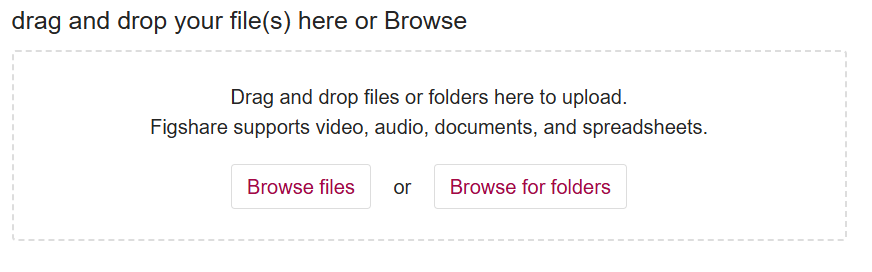
Once content has been uploaded it will appear below the upload section as a list showing the total number of Items uploaded. After the content has been uploaded, users have two options:

  • Discard files: This action deletes the uploaded Item and returns the user to the initial Submission page.
  • Continue to metadata: This moves the user to a form to provide additional Item metadata.

Providing Item Details

Selecting “Continue to metadata” moves the user to the Item edit page. This mimics the “Edit Item” page for logged in users and allows users to provide necessary information about their Item.

Editing files

1. At the top of the edit Item page, click on the “Manage files” link in the file section (top of the page):
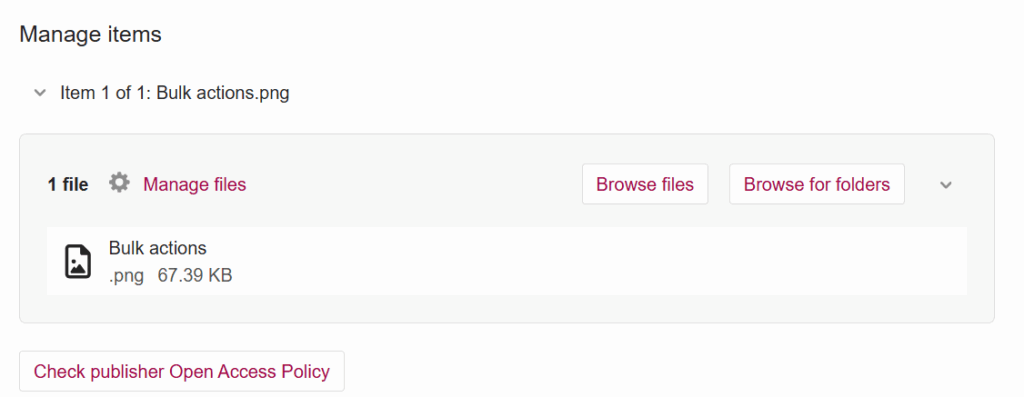
Figure: Click “Manage files” to edit, delete, replace, or reorder files.

2. A pop up will show options to manage files. Clicking the three dots reveals the delete option for the existing file. Deleted files will stay available to you for 30 days.
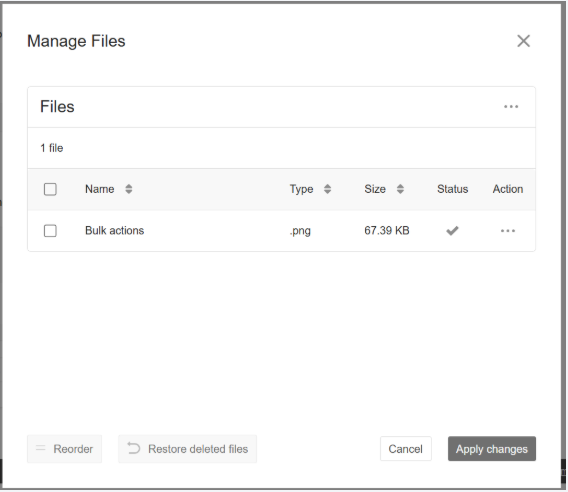
Figure: Files can be removed, downloaded, reordered and replaced.

3. You can add more files or reorder existing ones

4. Click save changes to save privately only or click the ‘Publish Item’ button to save and publish the new version

Providing Metadata

Beneath the files section is a form to provide the necessary Item metadata, this will be populated according to the specific portal configuration. An example of the metadata form can be seen below:
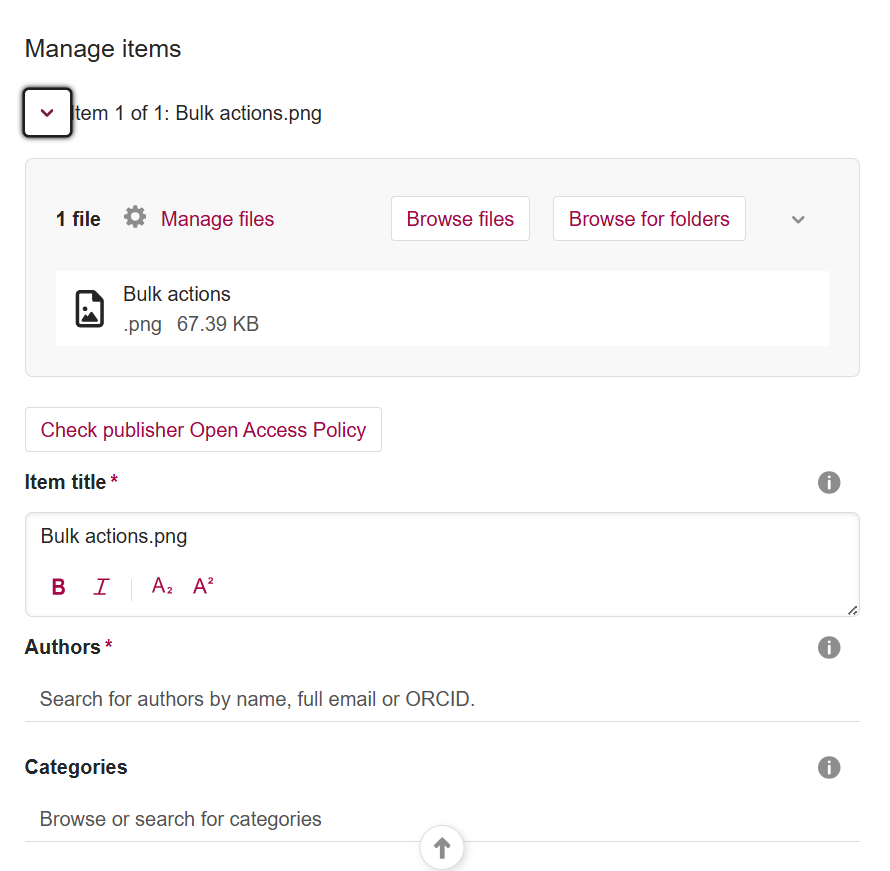
Please see the how to fill in metadata fields user guide for a description of the metadata fields

Additional custom metadata will be institution specific.

After completing the necessary metadata fields, users will have two options:

  • Delete the Item: This removes the upload and returns the user to the initial page.
  • Continue to upload: This uploads the Item into the designated portal for review. 

Certain institutions may also offer the ability to upload additional files and folders below the Item details on this page. This section follows the same upload process as described in the “Upload files and folders” section. 

Complete Submission

Once the Item has been submitted, the user will receive a success message. They will then be redirected back to the initial page and the Item will then appear within the portal to be processed according to the portal’s workflow.

The submitted metadata and files will appear in the review workflow for repository reviewers. The submitted Item will only be editable by the repository reviewers and administrators.

Was this helpful?

Share This Article :

  • Facebook
  • LinkedIn
figshare_logo_white

Figshare is a provider of repository infrastructure. Our solutions help organizations and researchers share, showcase and manage their outputs.

A-Digital-Science-Solution-white
bluesky-white

SOLUTIONS

  • Academic Institutions
  • Government, funders and nonprofits
  • Pharmaceutical Organizations
  • Publishers
  • Researchers
  • Figshare and Symplectic Elements

RESOURCES

  • Blog
  • Case Studies
  • Webinars
  • User Guides

COMPANY

  • About
  • Contact
  • Who we work with
  • Privacy policy

© 2025 Figshare LLP. All Rights Reserved.