
How to edit the publication dates on your item
When creating an item on Figshare, it’s possible to edit the dates in the publication timeline — or history — that appear on the public record of your item. Note that the image is depicting the location of the ‘Timeline’ for the Item Type Based Metadata release. In previous versions of Figshare, the ‘Timeline’ or ‘History’, were located below the ‘Description’.
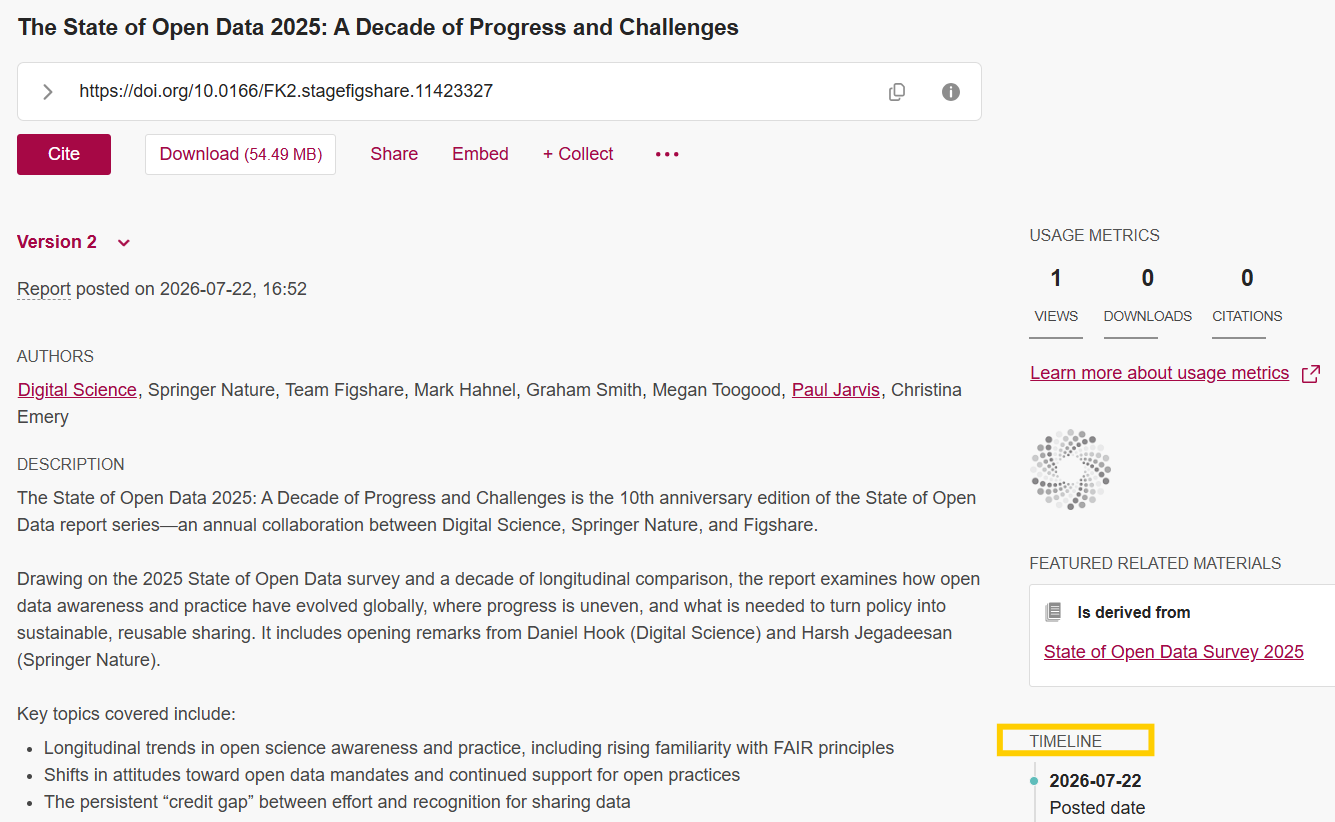
The ‘Timeline’ or ‘History’ section on an item’s public landing page may display several different dates.
To edit this, open your item from the ‘My content’ page and click on ‘Edit timeline’ on the right side of the screen. A pop-up will appear, ‘Manage Item History’.
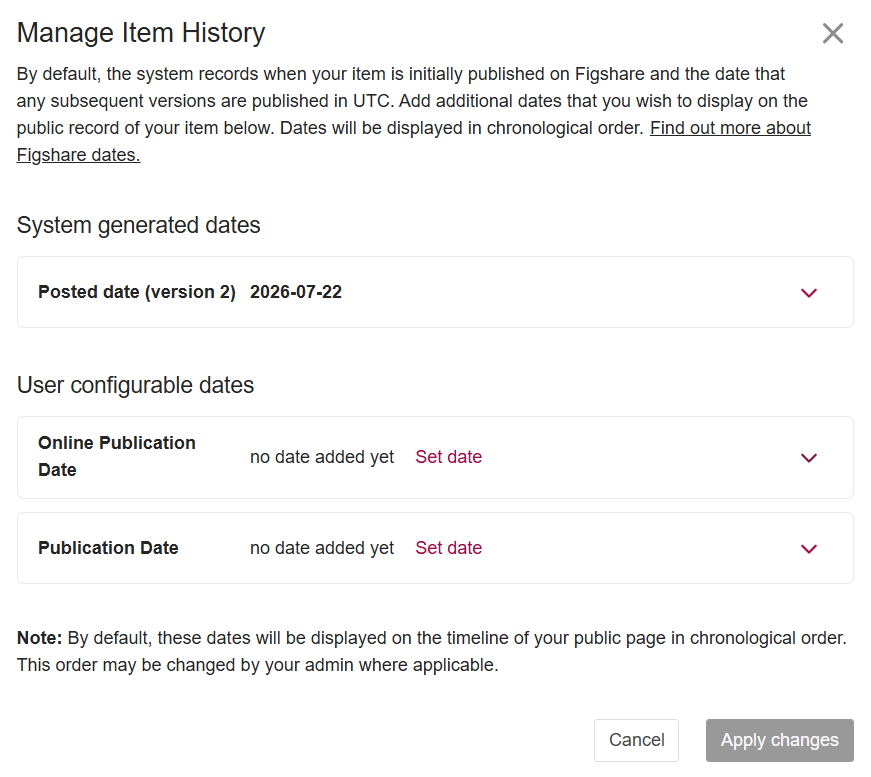
‘User configurable dates’: To edit the online publication date, click ‘Set date’, then enter the date following the format guidance.
If you are using a free account on Figshare.com, you will only be able to edit the ‘Online Publication Date’ by clicking the ‘Set date’ link.
If you are at an institution, you may have options to edit:
- Publication date: The initial date this item was first formally published. This date is optional. If this date is not provided, it will not be displayed publicly.
- Online Publication Date: The original date this work appeared in any context online. This date is mandatory. If no date is added, the initial posted date will be used.
Please note: some of these dates are configurable by your institution and if your institution has decided not to enable them, they will not appear as options to configure.
System-generated dates that cannot be edited:
- Posted Date (generated when creating a public version): The date of the latest public version. If there is no public version, no date will appear. This is a system-generated date and cannot be edited.
Once you’ve made any date amends, be sure to click on ‘Save changes’.

